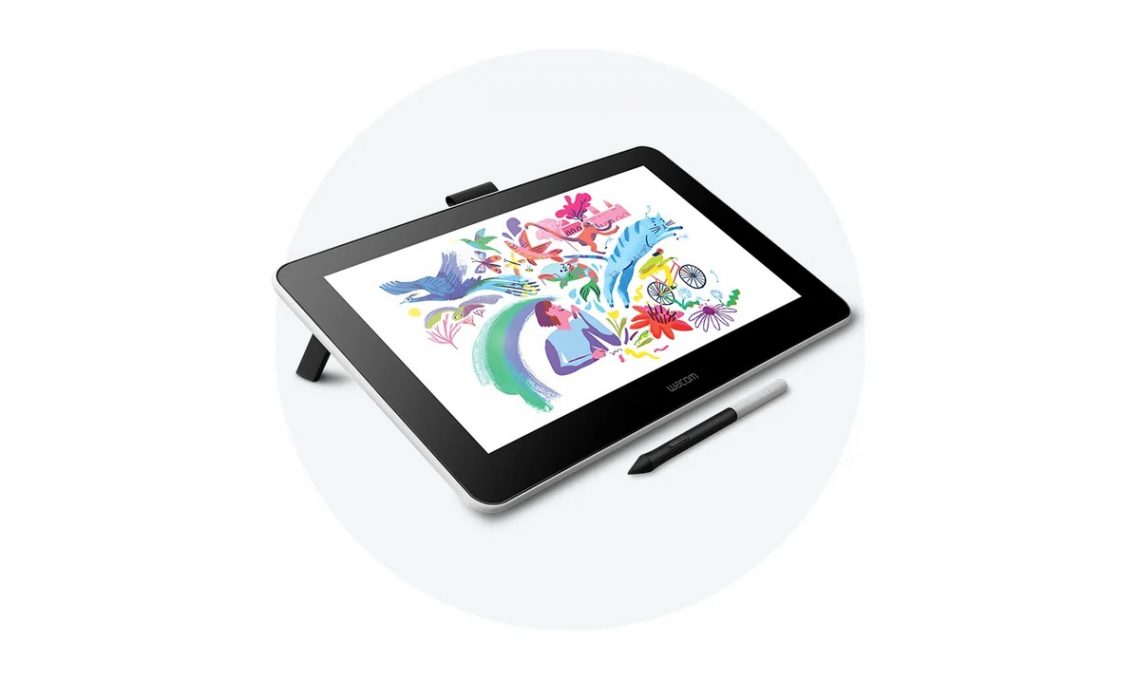
Unleashing Creativity: My Deep Dive into the Wacom Intuos Pro Medium
Alright, let’s get real for a moment. If you’re anything like me, you’ve probably spent countless hours staring at a screen, wrestling with a mouse, trying to bring your digital visions to life. For years, I told myself a graphics tablet was a luxury, something only “real” pros needed. I’d dabble with cheap knock-offs, only to be met with frustration – laggy lines, unreliable pressure, and a general feeling of disconnection from my art. Then, about a year ago, I finally took the plunge. After weeks of research, watching reviews, and agonizing over the investment, I decided to go for the **Wacom Intuos Pro Medium**. And let me tell you, it wasn’t just an upgrade; it was a revelation.
From the moment the package arrived, there was a sense of anticipation that I hadn’t felt with any other piece of tech in a long time. The box itself felt substantial, hinting at the quality inside. Unboxing the **Wacom Intuos Pro Medium** was an experience in itself – everything was neatly organized, from the sleek tablet itself to the Pro Pen 2 nestled in its stand, and the various nibs. The tablet felt incredibly premium to the touch; the smooth, cool surface, the slightly textured drawing area, and the subtle curves. It wasn’t just a tool; it felt like a statement. It screamed professionalism and durability.
My very first thought was, “Wow, this feels good.” And it truly does. The size, “medium,” felt just right for my desk. I’ve heard some people argue for the large, others for the small, but for my workflow, which involves a good mix of detailed illustration and broader strokes in Photoshop and Clip Studio Paint, the medium hits that sweet spot. It offers ample drawing space without feeling cumbersome or taking over my entire workspace. This balance is crucial for me, as I often work in a somewhat cluttered creative environment.
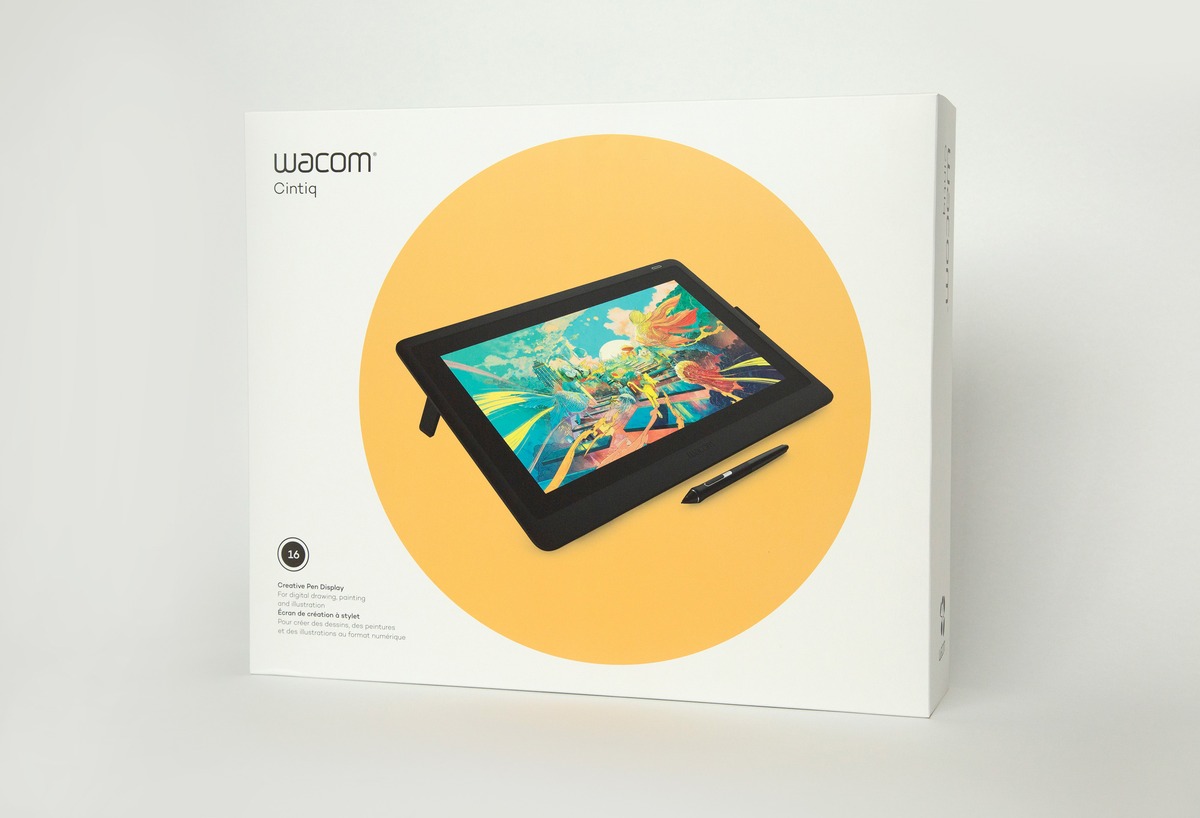
One of the immediate standout features, and frankly, the reason many of us gravitate towards Wacom, is the **Pro Pen 2**. This isn’t just a stylus; it’s an extension of your hand. The moment I started drawing, the difference was palpable. The 8,192 levels of pressure sensitivity are not just a marketing number; they translate into an incredibly nuanced and responsive drawing experience. Light touches create faint lines, pressing harder results in bold, opaque strokes – just like a real pencil or brush. This level of control makes such a profound impact on the natural feel of drawing digitally. I can feather edges, build up shading, and vary line weight with a precision I never thought possible on a computer.
Beyond pressure, the tilt recognition is another game-changer. When sketching with a charcoal brush in Photoshop, tilting the pen subtly changes the stroke, mimicking how a real charcoal stick would behave. It adds another layer of realism and expressive capability that elevates the digital art experience from merely functional to genuinely artistic. And the best part? No batteries. Ever. This might seem like a small detail, but the relief of not having to worry about charging yet another device, especially in the middle of a creative flow, is immense. It’s one less barrier between my ideas and their execution. The Pen 2 also features two customizable side buttons, which I’ve mapped to frequently used functions like undo/redo and switching between brush and eraser. This alone saves so much time and keeps my focus on the canvas.
Speaking of customization and workflow, the ExpressKeys and the Touch Ring on the **Wacom Intuos Pro Medium** are absolutely brilliant. There are eight ExpressKeys on the side of the tablet, and each one can be programmed for specific applications. For example, in Photoshop, I have keys set for zoom in/out, changing brush size, saving, and switching between layers. When I switch to Blender for 3D sculpting, those same keys can be re-assigned to different functions relevant to that software. This level of intelligent customization truly streamlines my process. I rarely have to reach for my keyboard now, which keeps my eyes on the screen and my hands precisely where they need to be.
The Touch Ring is equally clever. It has four customizable functions that you can cycle through with a button in its center. For me, these are usually brush size, canvas rotation, layer opacity, and zoom. Being able to smoothly adjust these parameters with a flick of my thumb is incredibly intuitive and fast. It might take a day or two to get the muscle memory down, but once you do, you’ll wonder how you ever managed without it. This thoughtfulness in design is a hallmark of the Wacom experience. If you’re serious about your digital art or design work, you need to check out the details on their official site. Visit Official wacom intuos pro medium Website Now and see for yourself.
Another feature I’ve come to appreciate is the multi-touch surface. This allows you to navigate, pan, zoom, and rotate your canvas using familiar gestures, much like you would on a smartphone or a trackpad. While I primarily use the pen for drawing, the multi-touch is fantastic for quick navigation or when I just want to browse my computer without putting the pen down. It’s not something I use constantly for art creation, but for general interaction, it’s a very welcome addition. There was a slight learning curve to prevent accidental touches while drawing, but Wacom’s driver software allows you to easily toggle multi-touch on and off, or even to disable it entirely if it’s not your cup of tea. I’ve found that with a little practice, it complements the pen nicely.
The build quality of the **Wacom Intuos Pro Medium** truly stands up to daily use. I’m not the gentlest with my tech, and this tablet has travelled with me to different workspaces, been subjected to countless hours of drawing, and it still looks and performs like new. The non-slip rubber feet keep it firmly planted on my desk, and the overall construction feels solid and dependable. It connects via USB-C, which is fast and reliable, and also offers Bluetooth connectivity for those who prefer a wireless setup. I primarily use the wired connection for maximum responsiveness, but having the Bluetooth option is great for portability or when I want to reduce cable clutter. The driver software, while sometimes needing an update (as all drivers do), has generally been robust and easy to configure.

My personal use case primarily revolves around digital illustration and comic art. I work extensively in Clip Studio Paint and occasionally Photoshop. Before the Intuos Pro Medium, I felt like I was fighting my tools. Now, it feels like an extension of my hand. The ability to smoothly transition from a rough sketch to detailed inking, then to coloring with precise gradients, all without feeling disconnected, has been a game-changer for my productivity and, more importantly, my enjoyment of the creative process. Photo editing in Lightroom and Capture One also feels significantly more intuitive. Masking, dodging, and burning with a pen feels far more natural and precise than with a mouse. For graphic design tasks, selecting intricate paths and manipulating anchor points is so much faster and more accurate.
I’ve even found myself using the **Wacom Intuos Pro Medium** for general computer navigation because it’s just so comfortable. My wrist pain, which was a constant companion with a mouse, has significantly diminished. It’s not just a tool for professional artists; it’s an ergonomic upgrade for anyone spending long hours in front of a computer doing precise work.
Of course, no product is absolutely perfect, and it’s important to set expectations. The textured drawing surface, while providing a nice tactile feel similar to paper, does cause pen nibs to wear down over time. Wacom provides several replacement nibs in the pen stand, which is a thoughtful inclusion, but it’s something to be aware of. Also, the price point of the Intuos Pro series is an investment. It’s not a casual purchase, but rather a commitment to your craft. However, considering the longevity, performance, and impact on my workflow, I view it as a wise investment that pays dividends in terms of efficiency and creative freedom. If you’re weighing the pros and cons, don’t just take my word for it. Head over to the official site and read more specifications. Visit Official wacom intuos pro medium Website Now.
Here’s what some other users have had to say about their experience with the **Wacom Intuos Pro Medium**:
“I was hesitant about the price, but after a few weeks, my workflow is so much smoother. It’s truly a professional tool that actually saves me time in the long run.” – *Digital Illustrator from Seattle*
“The Pro Pen 2 is just incredible. The precision feels like drawing on paper, even on a screen. I’ve tried other brands, but nothing comes close to this level of natural input.” – *Graphic Designer, New York*
“Setup was a breeze, and customizing the ExpressKeys changed my whole process. No more reaching for the keyboard constantly! It keeps me in the zone.” – *Photographer & Retoucher, Austin*
“Coming from an older Intuos, the multi-touch gestures on this wacom intuos pro medium are a game-changer for quick navigation and canvas manipulation. It just feels so intuitive.” – *Concept Artist, Los Angeles*
These sentiments really echo my own feelings. The investment pays off in tangible improvements to workflow, precision, and overall creative enjoyment.
So, who is the **Wacom Intuos Pro Medium** for? In my view, it’s for anyone serious about digital art, graphic design, photo editing, or even those who just spend a lot of time doing precise work on their computer and want a more ergonomic, intuitive input device. If you’re a student looking to step up your game, a seasoned professional who needs reliability, or an aspiring artist ready to invest in tools that won’t hold you back, this tablet is absolutely worth considering. It’s not just for drawing; it’s for anyone who interacts with a digital canvas.
The value here isn’t just in the hardware, but in the entire ecosystem Wacom has built around it – the robust drivers, the pen technology, and the years of experience refining what creative professionals need. It’s a workhorse that’s built to last and to integrate seamlessly into a wide range of creative software. When you invest in a Wacom Intuos Pro Medium, you’re not just buying a tablet; you’re buying into a system that empowers you to create your best work.
I often find myself recommending the **Wacom Intuos Pro Medium** to fellow creatives who are still on the fence. My message is always the same: if your creative endeavors are important to you, if you spend hours trying to perfect your digital work, then this is an investment that will genuinely elevate your craft. It certainly did for mine. It’s become such an integral part of my daily routine that I can’t imagine working without it.
If you’re ready to take your digital artistry to the next level, I genuinely encourage you to explore the capabilities of the Wacom Intuos Pro Medium. You can find more information, check out the full specifications, and perhaps even make the leap yourself by visiting the official website. It’s a decision I certainly don’t regret. Visit Official wacom intuos pro medium Website Now. Trust me, your creative workflow will thank you. For anyone serious about making their mark digitally, the Wacom Intuos Pro Medium is an indispensable companion. It’s not just a tool, it’s a creative partner. Consider it for your next artistic endeavor. Visit Official wacom intuos pro medium Website Now and discover what it can do for you.


You May Also Like

My Go-To Activewear: A Deep Dive into Sweaty Betty’s World
Unlocking Creativity: My Journey with the Wacom Intuos Pro Medium